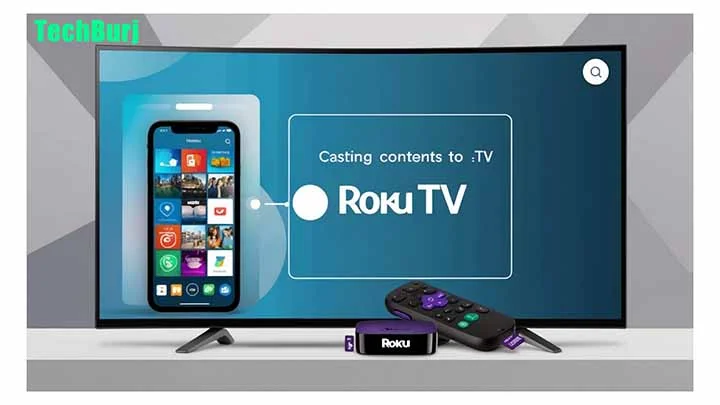
Whenever you start watching movies, webseries, or TV shows on your mobile or tablet, you get disturbed by calls, messages, and notifications. If you want to watch movies or TV shows on a big screen without any disturbance, it’s possible to cast apps like Netflix, Spotify, Amazon Prime, and YouTube to your TV by using a Roku device. In this blog, we provide you with a step-by-step guide on how to cast Roku to your TV.
Best Smartphones Under Rs. 20,000 In India
What is casting?
Casting is technology that allows users to cast the content that they are watching on a mobile device or tablet onto your TV. By using a Roku device, it enables you to watch content on a big screen like a TV without transferring files.
For example, if you are watching videos on your mobile device, you can easily cast videos on your TV by using a Roku device, so the video plays on a big screen, which you can also control with your phone. Casting requires both devices to be connected to the same Wi-Fi network.
Samsung Galaxy Ultra Watch Review
How to cast Roku to your TV step-by-step?
Here is the simple guide on how to cast Roku to your TV:
Step 1: Connect your Roku device with your TV’s HDMI port properly and power on the TV.
Step 2: Make sure that both devices should be connected to the same wifi network (casting may not work if you use different networks).
Step 3: Press the home button on your remote and go to the settings>system>screen mirroring and allow the screen mirroring mode.
Step 4: Now install and open any content streaming app, such as Netflix, YouTube, or Spotify.
Step 5: Now look for the cast icon inside the app and tap on it.
Step 6: Now the app will search nearby devices. select your Roku device from this list.
All set, the streaming app will automatically launch on your Roku device, and now you can start watching content on your TV. While watching content on your TV, you can remotely control the device through your mobile.
Reset UPI PIN How to Reset UPI PIN Using BHIM UPI App know the steps
What is mirroring?
Mirroring is a technology that allows users to clone the display, such as a mobile phone, tablet, or PC, to a TV or other external screen. When you mirror the mobile device screen, you will be able to see the mobile screen on the TV or other screen, whether it’s apps, videos, photos, or your home screen. All the things will appear exactly on the other screen where you mirror it.
Technologies that used for mirroring devices:
- Google Cast: This mirroring technology used in Chromecast devices allows Android and Chrome OS users to mirror their screens.
- Airplay: Apple’s mirroring technology mirrors screens from iPhones, iPads, and Macbooks to Apple’s TV.
- Miracast: it’s a wireless technology that helps to mirror your device screens to a TV without connecting wires.
Is it possible to Add Multiple Bank accounts in the PhonePe app Know the process
Conclusion
Using a Roku device to cast mobile, PC, or tab to TV is the easiest way to enjoy movies and TV shows on a big screen. Also, you can easily mirror your device’s screen by using this technology. For example, you can view your photos, apps, and home screen on the TV and even control everything from your mobile device. If you open Gallery on your mobile, that will appear on the TV.

Vishal Jakhar is a Senior Writer at TechBurj.Com He has penned over a hundred articles on TechBurj covering a wide range of topics on tech.
Below here you can find some of his interesting articles related to mobiles and gadgets.
1 thought on “How to Cast Roku to Your TV”