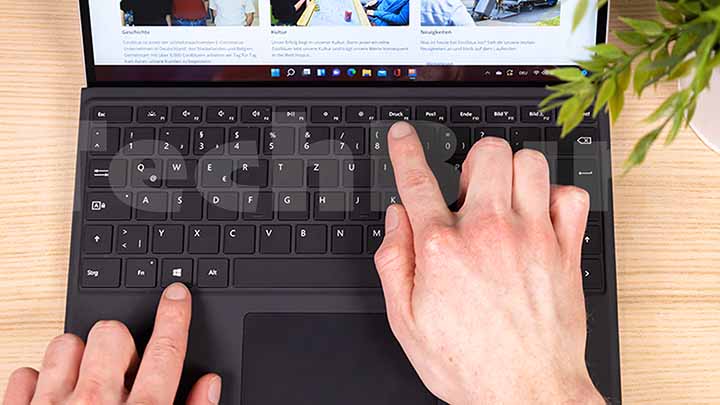
Taking screenshots on a laptop is a common task, whether you need to capture an important document, save a funny meme, or take a screenshot for a work presentation. Fortunately, various ways exist to capture your Windows and Mac laptops screen. This guide will walk you through the most popular methods for both operating systems.
For Windows Laptops
Windows laptops come with several built-in tools for taking screenshots. Here are the most commonly used methods:
Using the Print Screen (PrtScn) Button
The simplest method to take a screenshot on a Windows laptop is by using the PrtScn button. Here’s how to do it:
- Full-Screen Screenshot: Press the PrtScn key on your keyboard. This will capture the entire screen and copy it to your clipboard. You can paste it into an image editor (like Paint or Photoshop) or a document by pressing Ctrl + V.
- Screenshot of Active Window: If you only want to capture the currently open window (not the entire screen), press Alt + PrtScn. This will copy the active window to your clipboard.
- Save Screenshot Directly: If you want to capture the entire screen and save it directly as an image file, press the Windows key + PrtScn. The Screenshot will be saved in the Pictures folder under Screenshots as a PNG file.
Using the Snipping Tool (or Snip & Sketch in Windows 10/11)
For more flexibility, you can use the Snipping Tool (or Snip & Sketch in newer versions of Windows). This tool allows you to capture part of the screen or the entire screen and annotate your Screenshot.
- Search for Snipping Tool or Snip & Sketch in the Start menu to access the tool.
- Once the tool opens, click on New and select the area of the screen you want to capture. You can choose from several modes, including rectangular, free-form, or full-screen snip.
- After capturing, you can annotate, save, or share the Screenshot.
Using Windows + Shift + S (Windows 10/11)
For a quicker method available in Windows 10 and later, press Windows + Shift + S. This will dim the screen and allow you to draw a rectangle to select the area you want to capture.
- After selecting the area, the Screenshot will be copied to the clipboard, and you can paste it into an editor or document.
For Mac Laptops
Mac laptops also have built-in tools to take screenshots, making the process straightforward.
Capture the Entire Screen
Press the Command (⌘) + Shift + 3 keys to capture the entire screen. This will take a screenshot of your whole screen, and the image will be saved directly to your desktop.
Capture a Selected Portion of the Screen
To capture only a specific part of the screen, press Command (⌘) + Shift + 4. After pressing this combination, your cursor will change to a crosshair. Click and drag to select the area you want to capture.
- Release the mouse button to take the Screenshot. It will be saved to your desktop.
Capture a Specific Window
Press Command (⌘) + Shift + 4 to capture a specific window, then press the Spacebar. Your cursor will change to a camera. Click on the window you want to capture, and the Screenshot will be saved to your desktop.
Use the Screenshot Toolbar (macOS Mojave and Later)
For macOS Mojave (10.14) and later, you can use the Screenshot Toolbar for more control. Press Command (⌘) + Shift + 5, and a toolbar will appear at the bottom of the screen. You can capture the entire screen, a selected portion, or a specific window from here.
- You can also record the screen or set a timer for the Screenshot.
Conclusion
Taking screenshots on a laptop is an essential skill, whether for work, study, or leisure. Both Windows and Mac laptops offer simple methods to capture your screen. Windows users can rely on the PrtScn button, Snipping Tool, or Snip & Sketch, while Mac users have easy-to-remember shortcuts like Command + Shift + 3 and Command + Shift + 4.
No matter your method, taking a screenshot has never been easier. Experiment with these shortcuts to find the one that best fits your needs.
References:
- Windows Snipping Tool & Snip & Sketch: Available in the Start menu (Windows 10/11).
- Mac Screenshot Shortcuts: Refer to macOS documentation for specific versions.

Vishal Jakhar is a Senior Writer at TechBurj.Com He has penned over a hundred articles on TechBurj covering a wide range of topics on tech.
Below here you can find some of his interesting articles related to mobiles and gadgets.