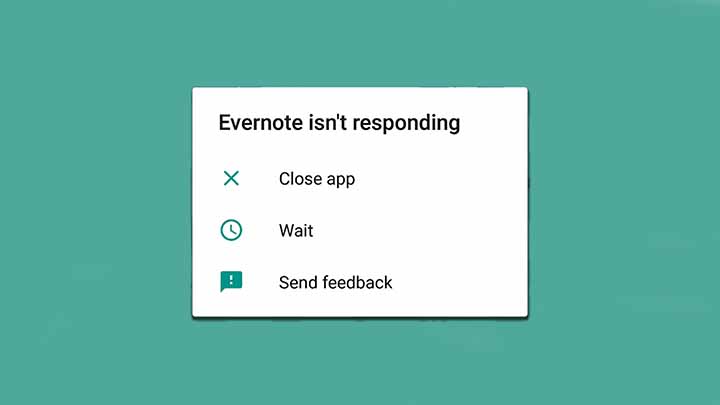
It’s not uncommon for Android apps to encounter issues from time to time. Whether it’s a sudden crash, unresponsiveness, or performance slowdowns, these glitches can be frustrating. Fortunately, there are several quick and effective solutions you can try to get your apps up and running smoothly again. Here’s a step-by-step guide on how to fix an installed Android app that isn’t working.
Restart the App
The first thing you should try is restarting the app. If an app is acting strangely or freezing, simply closing it and reopening it might resolve the issue. To do this:
- Close the app: Go to the recent apps menu by tapping the square icon (or use gestures depending on your device). Swipe the problematic app away to close it.
- Reopen the app: Launch the app again from your home screen or app drawer.
This simple step can help eliminate minor glitches or performance issues.
Restart Your Device
If restarting the app doesn’t work, try restarting your device. A reboot can clear temporary system caches, refresh the system, and address any minor software issues that might be affecting the app’s performance.
- Restart the phone: Press and hold the power button until the shutdown options appear, then tap Restart or Reboot. Wait for the device to reboot and try the app again.
Check for App Updates
Outdated apps may experience bugs or incompatibilities with newer versions of Android. Developers often release updates to fix bugs, add new features, or ensure compatibility with the latest Android versions. To check for updates:
- Open the Google Play Store.
- Tap on the three lines or your profile icon in the top-left corner.
- Go to My apps & games.
- If an update is available for the problematic app, tap Update.
Updating the app may resolve issues caused by bugs in the previous version.
Clear the App Cache and Data
Over time, cached data can become corrupted or outdated, which may cause apps to malfunction. Clearing the cache and data for the app can often fix issues without deleting your personal data or settings.
Here’s how to do it:
- Go to Settings > Apps or Apps & notifications.
- Select the problematic app from the list.
- Tap Storage.
- First, tap Clear Cache to remove temporary files.
- If the issue persists, tap Clear Data (note that this may remove app-specific settings or login information).
Reinstall the App
If the app continues to misbehave, reinstalling it may be the best option. Uninstalling and reinstalling the app will remove any corrupted files and settings, giving you a fresh installation.
- Uninstall the app: Go to Settings > Apps > [App name] > Uninstall. Alternatively, you can long-press the app icon on your home screen or app drawer and select Uninstall.
- Reinstall the app: Open the Google Play Store, search for the app, and tap Install.
Check for System Updates
Sometimes, the issue could be related to your Android operating system, not the app itself. Ensure your device is running the latest software version, as updates often include bug fixes that might address app performance issues.
- Go to Settings > Software update or System.
- Tap Download and install if an update is available.
- After updating, restart your phone and check if the app works correctly.
Check App Permissions
Certain apps may require specific permissions to function properly. If an app isn’t working as expected, make sure it has the necessary permissions.
- Go to Settings > Apps > [App name] > Permissions.
- Ensure that the app has the permissions it needs (e.g., storage, camera, location).
If permissions are not granted, toggle them on and restart the app.
Free Up Storage Space
If your device is running low on storage, apps may not work correctly due to insufficient space for temporary files and updates. To free up space:
- Go to Settings > Storage.
- Review the storage usage and remove unwanted files, photos, or apps.
You can also use Android’s Storage Manager to identify apps and files that are consuming large amounts of storage.
Check for Compatibility Issues
In some cases, an app may not be compatible with your specific version of Android or your device’s hardware. To check this, visit the Google Play Store and review the app’s details to ensure it’s compatible with your phone.
If the app has been updated and no longer supports your device, look for an alternative app that can serve the same purpose.
Contact App Support
If none of the above steps solve the issue, you may want to reach out to the app’s support team. They may be aware of known issues or offer additional troubleshooting steps. To contact support:
- Go to the app’s page on the Google Play Store.
- Scroll down to the Developer contact section, where you’ll find an email address or support website.
Conclusion
Dealing with an app that isn’t working can be frustrating, but with these simple troubleshooting steps, you can often fix the issue yourself. From restarting the app or device to reinstalling the app and checking for updates, these methods cover a wide range of common problems. If all else fails, contacting the app’s support team may provide further insight into the issue. By following these steps, you can ensure that your apps stay functional and continue to serve your needs.

Vishal Jakhar is a Senior Writer at TechBurj.Com He has penned over a hundred articles on TechBurj covering a wide range of topics on tech.
Below here you can find some of his interesting articles related to mobiles and gadgets.