If you love watching YouTube but struggle with searching or navigating the app on your smart TV, especially if it doesn’t have voice assistant support, don’t worry. There’s a simple solution that allows you to stream YouTube from your phone to your TV, and it doesn’t require additional devices or a complicated setup.
This article will guide you through the process of linking your phone’s YouTube app to your smart TV, allowing you to control the app from your phone while watching videos on a larger screen.
Why Connect Your Phone to Your Smart TV?
Sometimes using a smart TV to search for content on YouTube can be frustrating, especially when typing or navigating with a remote. This is especially true if your TV doesn’t have a voice assistant to help you search more easily. The best solution? Stream YouTube from your phone to your TV using a method called “casting.”
While casting is great for watching content on your TV, it can drain your phone’s battery quickly since it requires the YouTube app to be open on your phone the entire time. But there’s a trick that allows you to stream YouTube to your TV without draining your phone’s battery and without needing to keep the YouTube app open. Let’s dive into how to do this!
Battery-Saving Method for Streaming YouTube from Phone to TV
By using a code-based method, you can easily connect your phone to your smart TV and enjoy YouTube videos without your phone’s battery taking a hit. Here’s how to do it:
Step-by-Step Guide to Connect YouTube Mobile App to Your TV
Open YouTube Settings on Your Smart TV
- Start by turning on your smart TV and launching the YouTube app.
- Navigate to the settings menu by selecting the side arrow (usually on the left side of the screen) and scroll down.
- Under “Library,” select More Settings.
- Look for an option labeled Link TV or TV Code. This is where you’ll get the code to link your TV to your phone.
Get the Link Code
- Once you’re in the “Link TV” section, you will see a unique code displayed on the screen.
- Keep this code on your screen you will need it shortly.
Open YouTube on Your Smartphone
- Now, open the YouTube app on your phone.
- Tap the Cast Icon (it looks like a small TV with a Wi-Fi signal) in the upper-right corner of the app.
Link Your Phone to the TV
- In the cast menu, select Link with TV Code (not the “fast” option).
- Enter the code displayed on your TV into the prompt on your phone.
- Once the code is entered, tap Link. Your phone and TV should now be synced!
Start Watching YouTube on Your TV
- Once connected, you can start playing any video on your phone, and it will stream directly to your TV.
- The video will continue playing on the TV, while your phone’s screen remains free, saving your battery.
Control Video Playback from Your Phone
- You can control the volume, skip to the next video, or pause and play videos directly from your phone.
- Your phone will not play the video; it will only act as a remote control for YouTube on your TV.
Additional Features
- Auto-play: If you want YouTube to automatically play the next video after one finishes, simply click on the video, and when it’s done, YouTube will automatically start another one.
- Control Music: If you want to listen to music on YouTube, you can control the playback from your phone, including volume adjustments, without interrupting your TV’s display.
Conclusion
Connecting your YouTube mobile app to your smart TV can greatly enhance your viewing experience. This easy-to-follow guide shows you how to use a TV code to link your phone and TV without draining your battery. Whether you want to watch a YouTube video, control playback, or just enjoy a larger screen, this method is a simple and effective way to stream your favorite content.
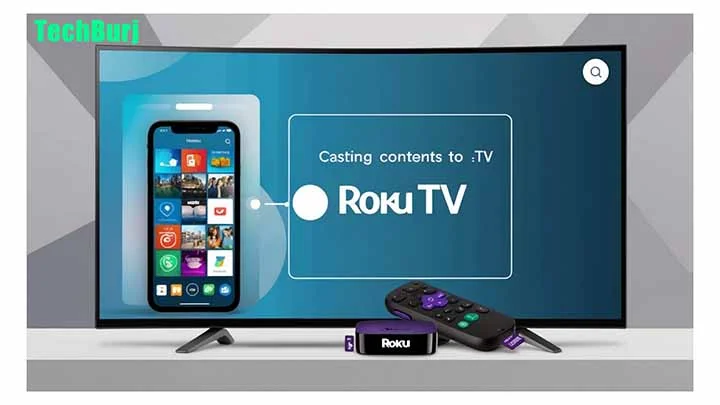

Vishal Jakhar is a Senior Writer at TechBurj.Com He has penned over a hundred articles on TechBurj covering a wide range of topics on tech.
Below here you can find some of his interesting articles related to mobiles and gadgets.