Live Photos can be a fun way to capture moments with a little bit of motion, but they can also take up more storage space on your iPhone. If you’re looking to save storage and stop your iPhone from automatically taking Live Photos, here’s a step-by-step guide on how to turn them off.
Turning Off Live Photos in the Camera App
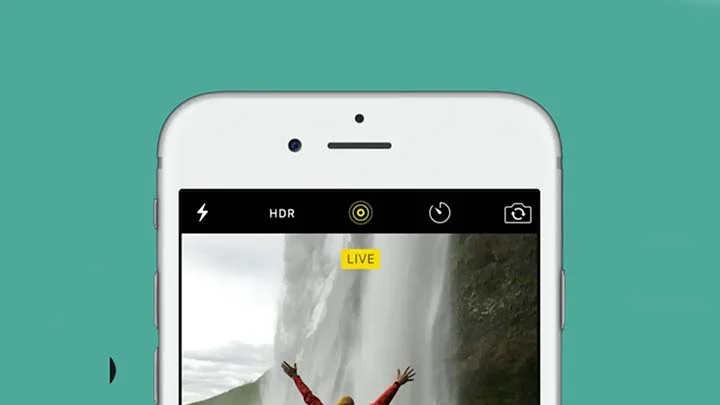
The simplest way to disable Live Photos is directly within the Camera app. When you open the Camera app, you’ll see the Live Photo icon in the top-right corner of the screen. It looks like a set of concentric circles. If Live Photos are enabled, the icon will appear bright yellow.
To turn it off, just tap the Live Photo icon. You’ll notice the icon will change to a gray color with a line through it, indicating that Live Photos are now disabled. When you snap a photo, it will be a standard still image instead of a Live Photo.
If you want to enable Live Photos again, just tap the icon once more, and the animation feature will be back on.
Preserving Your Settings
By default, your iPhone may revert back to Live Photos after you close the Camera app, which can be frustrating if you prefer to keep it off. Fortunately, there’s a way to make sure your settings stay consistent.
- Open the Settings app on your iPhone.
- Scroll down and tap Camera.
- Select Preserve Settings.
Here, you’ll see a list of options for preserving your settings, such as Live Photos, Portrait Mode, and others. To ensure Live Photos remains off, toggle on the option for Live Photos. This will prevent it from automatically turning back on when you open the Camera app again.
With Preserve Settings turned on, your iPhone will remember your preference for Live Photos, even after you close and reopen the Camera app.
Turning Off Live Photos for Existing Photos
If you’ve already taken a Live Photo and want to convert it into a still image, it’s easy to do so:
- Open the Photos app and find the Live Photo you want to modify.
- Tap and hold on the photo to play the animation.
- In the top-left corner of the photo, you’ll see the Live indicator. Tap on it.
- From the menu that pops up, select Turn Off Live Photo.
Once you’ve done this, the photo will become a regular still image, and it will no longer animate when you press and hold it.
Why Turn Off Live Photos?
Turning off Live Photos is a great way to save storage space on your iPhone, especially if you take a lot of pictures. Live Photos use more storage than regular photos because they capture a few seconds of video along with each photo. If you’re running low on space, or just prefer static images, disabling Live Photos can help you optimize your storage.
Conclusion
Now you know how to turn off Live Photos on your iPhone and save storage space. Whether you’re looking to preserve your settings or convert existing Live Photos to still images, these tips will help you take control of your photo settings.

Vishal Jakhar is a Senior Writer at TechBurj.Com He has penned over a hundred articles on TechBurj covering a wide range of topics on tech.
Below here you can find some of his interesting articles related to mobiles and gadgets.